




The ai-coustics SDK is a key part of the pipeline for anyone working in Voice AI. Through its Quail model, the SDK provides real-time voice enhancement solutions that improve your STT, VAD, and overall speech quality, while also reducing Word Error Rates and detection errors. That means fluent turn-taking, accurate responses, and a competition-leading performance from your voice agent, live conferencing, or other Voice AI products and applications.
Our technical approach means there’s plenty of benchmarks to prove Quail’s success. Our research has shown impact including:
- 40% fewer detection errors
- 48% higher speech quality
- A stronger performance than Krisp, SileroVAD, and other traditional voice AI tools
- Down to 10ms latency
But why not try it for yourself? ai-coustics is built by developers, for developers, and designed for transparency and easy testing, with seamless onboarding, flexible payments, and uncomplicated gateways. Simply sign up to the Developer Platform and start testing – here’s how.
Step 1: Sign up on the Developer Platform and generate your SDK key
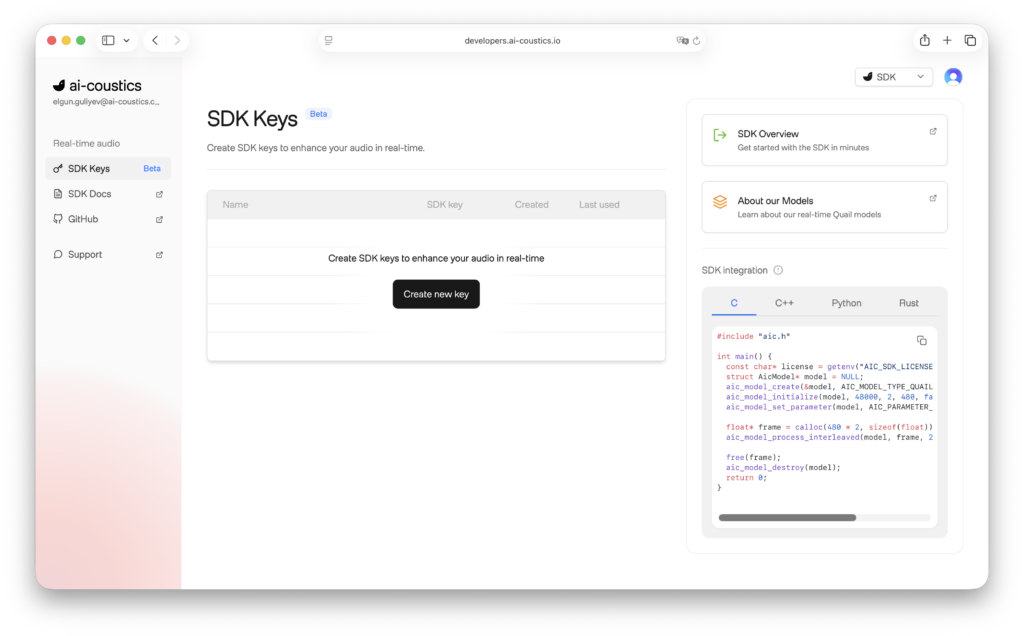
From the ai-coustics homepage, access the Developer Platform via the Sign Up/Login buttons. Either create a new account or sign into your existing account. Note that you’ll need a business email address.
In the Developer Platform, navigate to the SDK section (as opposed to API) using the drop button in the top right corner. The SDK section has a left-hand column with access to both documentation and SDK keys. Navigate to “SDK keys”, and you’ll find an option to generate a new SDK key.
Select “Create new key”, give it a name if you like, and you’ll be given a key. Copy the key for later.
Step 2: Download the SDK on GitHub
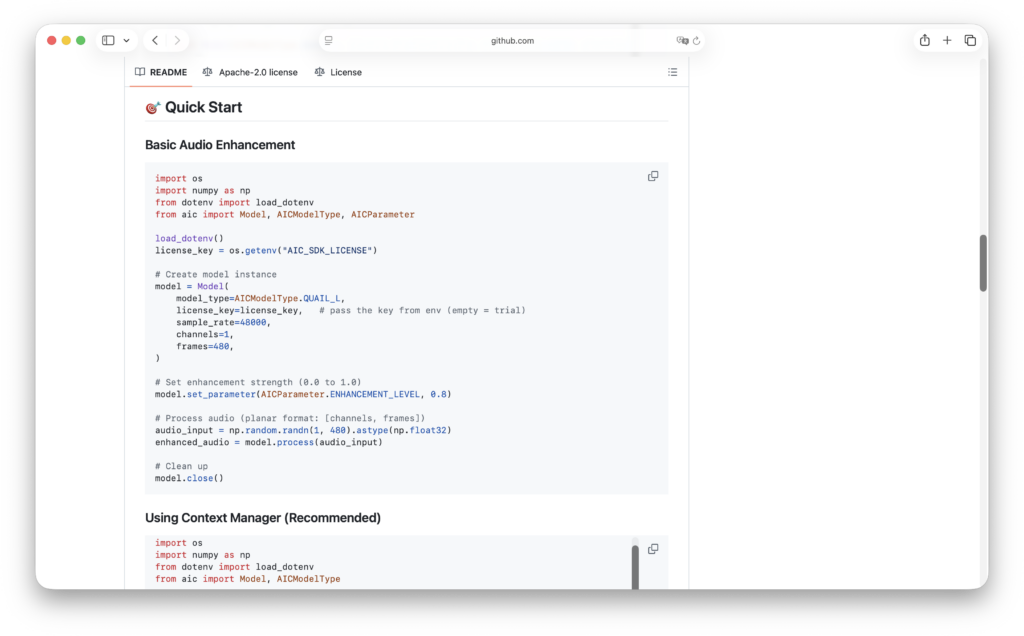
On the ai-coustics GitHub, you can access a number of wrappers including Python, C++, Rust, and more.
Let’s assume you’re using Python. Choose Python and scroll down to the “Quick Start” section, where you have access to a basic audio enhancement code. You can then copy this from the ReadMe and navigate to a Visual Studio Code project.
Create a blank canvas and use the Python project manager of your choice. Then navigate to main.py and replace that with the Quick Start SDK code from the ReadMe. From there, you’ll need to add a few dependencies – the most important being the SDK itself, as well as a sound file.
Another important dependency is .M for handling the ai-coustics license key. To add this, navigate to the folder where you created a .M file and move it over to your new file. If you open the .M file with Text Editor, you’ll see the ai-coustics license key from the Developer Platform. Paste it in and move it back over to the Visual Code Project – and everything should be ready to run. Try an example!
Step 3: Enhance audio files with our SDK
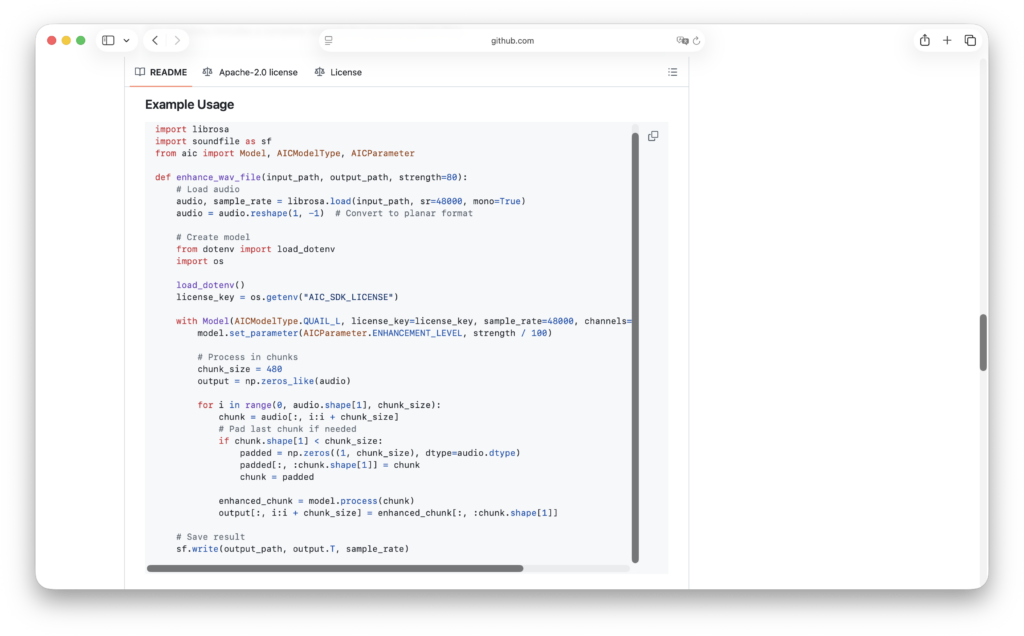
Now that you’ve successfully run the SDK Quail model for the first time, you’re ready to start enhancing audio.
Create a new Python file and navigate back to the GitHub repository to the “Example: Enhance WAV File” section. Copy the code under example usage, head back to your new Python file in Visual Studio Code, paste the code and import numpy if it’s missing. You can also add a F section of code to test the function you just created.
Now you just need to add some input audio to test! Try something like speech with background noise or room reverb where you want to hear the clear speech enhancement improvement.
Run the code and once it’s completed, you’ll see that it has rendered the enhanced version of the input.
Step 4: Check out our docs and join our Discord channel
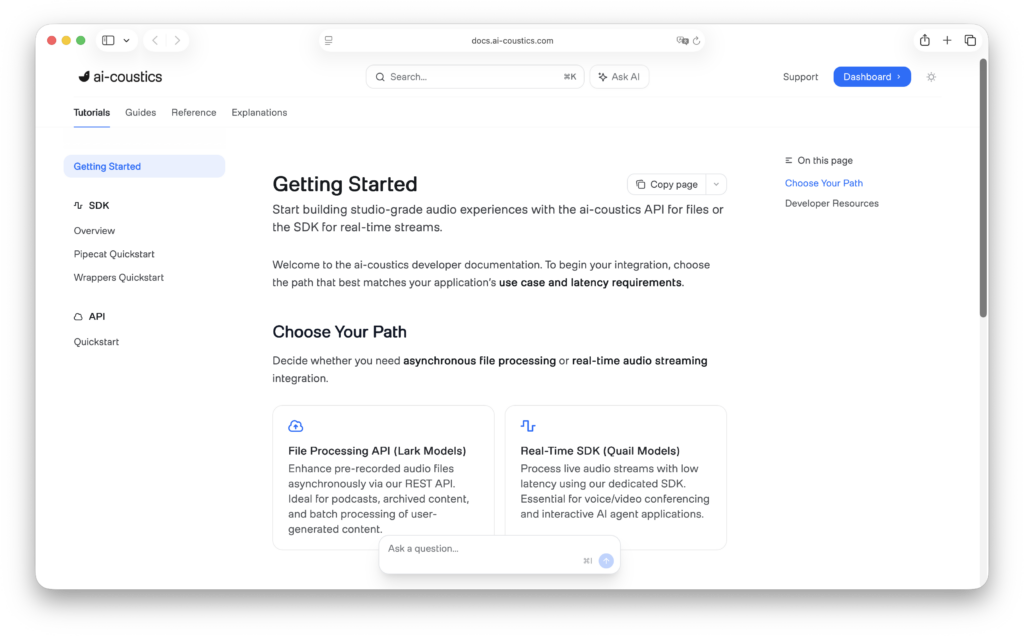
Now that you’re up and running with our SDK, it’s time to explore! Feel free to check out our full documentation through the Developer Platform. You can also join our Discord channel to speak directly to us: ask questions, request features, and be the first to hear of any exciting new updates. Find the Discord channel via the “Support” button in the Developer Platform, which will give you a direct link to the server.